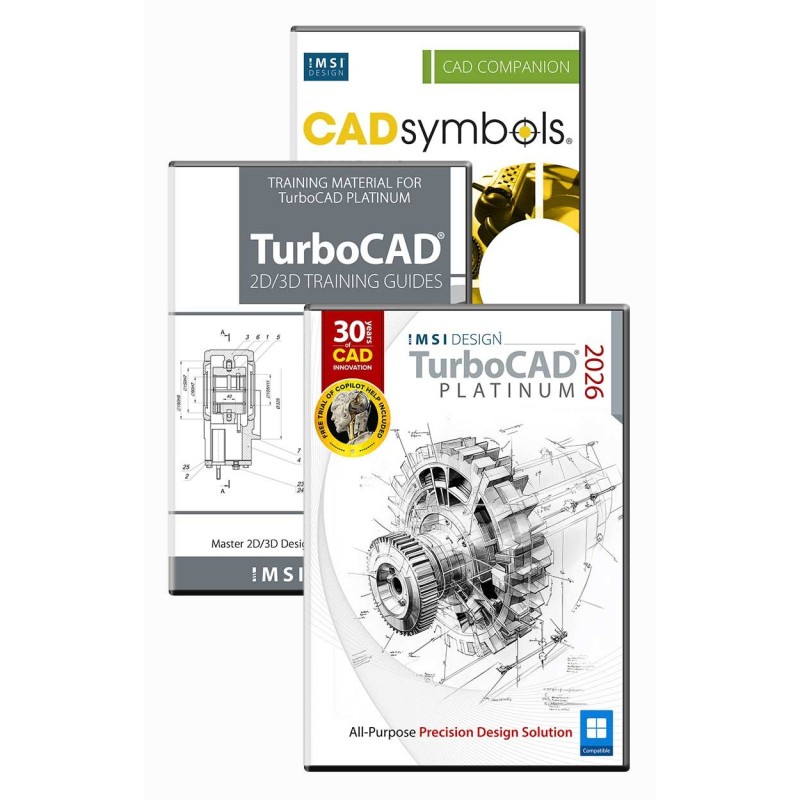

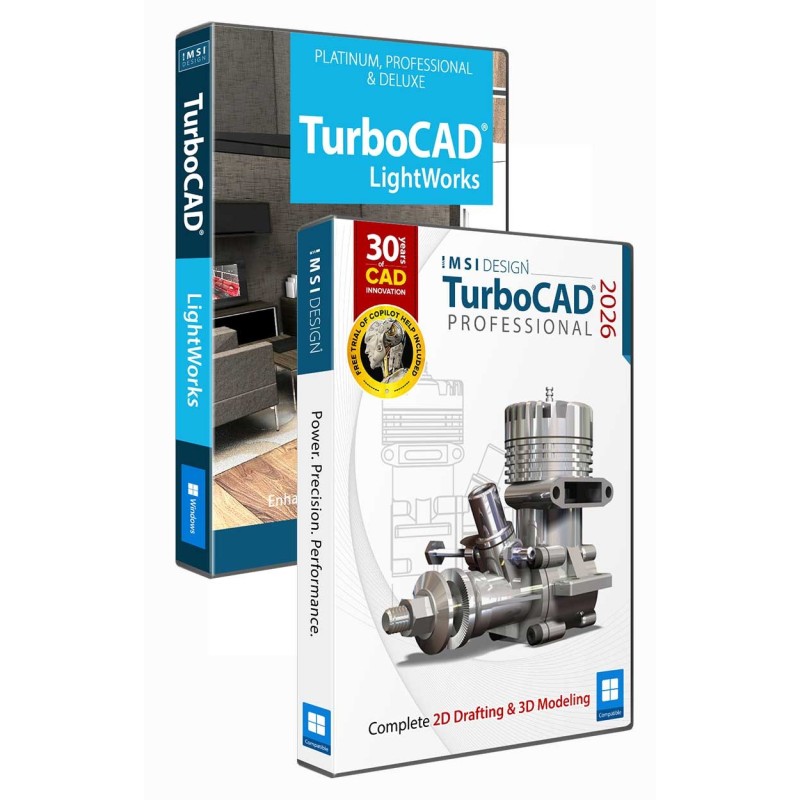


Elite 2D/3D CAD Software
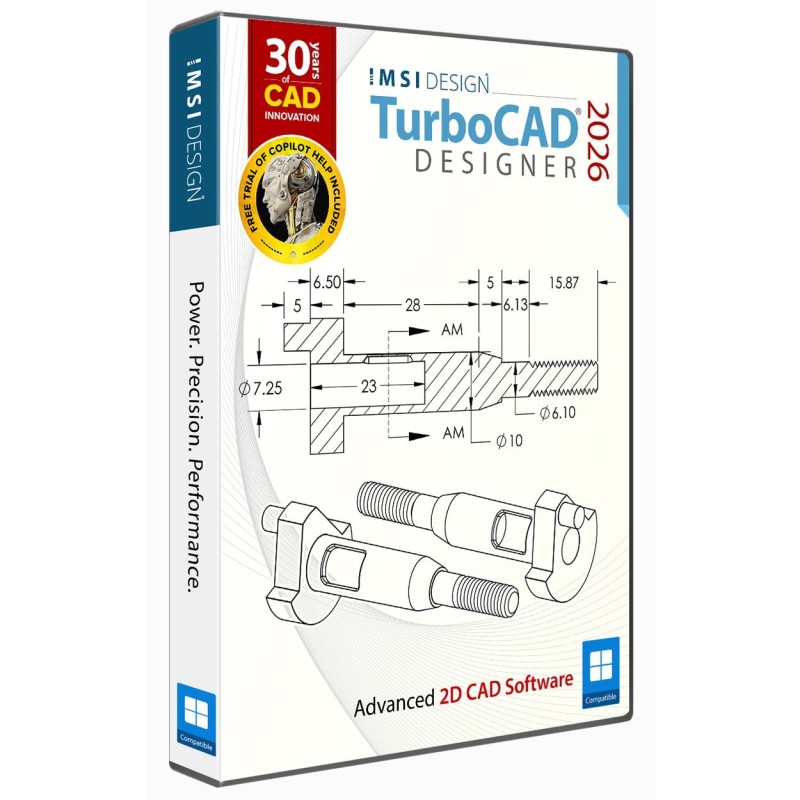
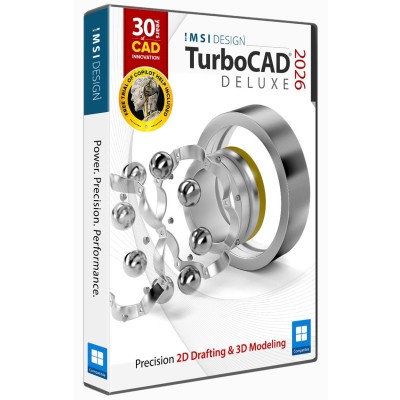
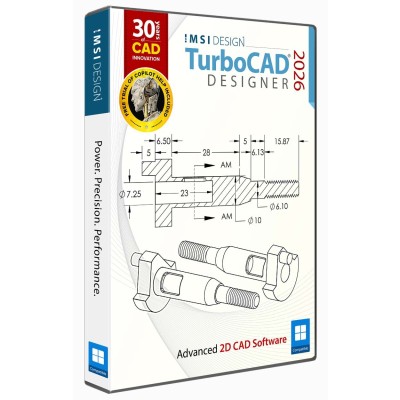
TurboCAD® for Windows offers versatile CAD tools for engineers, architects, designers, and hobbyists. With Platinum, Professional, Deluxe, and Designer versions, it suits all skill levels. Platinum includes advanced 3D modeling, ACIS® solids, and rendering. Professional combines 2D/3D design with strong file support. Deluxe is great for beginners or small businesses, while Designer is ideal for basic 2D drafting. With intuitive tools, tutorials, and wide file compatibility, TurboCAD® delivers precision and creativity for all your design needs.
Note: Multilingual Version (English, French, German). The installer includes additional languages, but some localizations are still in progress and may not function fully.
TurboCAD® offers a comprehensive suite of professional 2D/3D CAD tools for designing, modifying, presenting, and documenting projects. It features hundreds of drawings, design, and modification tools, a powerful drafting palette, and an optional AutoCAD®-like 2D drafting interface with a command line and dynamic input cursor. Additionally, it includes 2D geometric and dimensional constraints, an ACIS® solid modeling engine, and a customizable Ribbon Interface with 4K monitor support to enhance productivity and readability on high-resolution displays.
Note: The availability of features may vary across different model variants. For a detailed overview of feature distribution, please consult below comparison charts. These will help you identify which features are included in the variant you are interested in.
TurboCAD® includes set up wizards, context-sensitive help, snaps, alignment aids, handle-based editing, and a flexible user interface. These will shorten your learning curve, and improve your productivity and design efficiency. You will also have access to our training tutorials, so you will not have to learn through trial and error. We are experts at creating CAD software and our tutorials will help you to become an expert user quickly.
Your purchase includes 12 months of free technical support. Our Maintenance & Support plans are valid for one year from purchase and extendable annually. These plans are available for products up to 5 years old, and they include access to technical support and software updates (patches). Also see our Licensing and Sales Policies for further information on our pricing models.
TurboCAD® users can quickly navigate the fully customizable user interface with Ribbon and Toolbar modes Workspace-focused layouts reduce setup overhead.
TurboCAD® Platinum and Professional also feature an AutoCAD®-like design interface. The ePackage feature in TurboCAD® Platinum simplifies collecting and assembling all external resources for distribution. TurboCAD® is 64-bit compatible, enabling it to handle very large CAD files. Learn more about User Interface and Performance.

Unlock the full potential of your design process with Copilot, the AI-driven companion seamlessly integrated into TurboCAD®. This integrated AI tool streamlines navigation, expedites your project's progress, and enhances your design endeavors with insightful analysis. Copilot supports two levels: TurboCAD® Copilot Help and TurboCAD® Copilot Professional.
All variants of TurboCAD® includes a complimentary trial to TurboCAD® Copilot Help, powered by Retrieval-Augmented Generation (RAG) technology, providing contextually relevant answers through trusted documentation, FAQs, video tutorials, and more.
TurboCAD® Copilot Professional includes Talk to your CAD Data, general AI access, and Text to Image. TurboCAD® Copilot Professional is adept at handling diverse multilingual requests, from guiding you through the initial steps of using TurboCAD® to sharing intriguing details about your file or providing insights on design trends and principles.
*Flexible Term Plans: Choose between a 1-year or 3-year TurboCAD® Copilot Term Plan to best suit your needs.

The Design Director makes it easy to organize, explore and apply design alternatives. The Design Director palette with advanced controls for layers, layer filters, layer grouping, setting and saving work layers, managing named views and more speeds up work and improves productivity. Learn more about the Design Director.
TurboCAD® is rich in professional 2D/3D design tools and drawing aids that speed design. Create views and viewports of any size and shape. Access extensive paper space and printing options. Multi-select drawing tool, dimension tools, and more. Learn more about 2D Design and Editing.
TurboCAD® includes a comprehensive set of 3D surface modeling and editing tools, ideal for both single part and small assembly mechanical designs. Learn more about 3D Drawing and Surface Modeling.

TurboCAD® offers advanced 3D surface and ACIS® Solid Modeling tools. Features like the Thread Tool, Twisted Extrude, Extrude to Face, Imprint Tool, Parametric Holes, and more, enable the easy creation of complex professional designs. Access advanced modification tools such as Bend, Unbend, and Facet Offset to easily modify existing geometry. Smooth Surface Mesh and Sub-D Modeling tools are also available, allowing for the creation of more organic shapes. Learn More about Solid Modeling / Advanced Mechanical Design
TurboCAD® includes an integrated suite of architectural tools, featuring Self-Healing Walls, Self-Trimming & Self-Aligning Blocks, and depending on the variant, includes Windows, Doors, Muntins, Roofs, Slabs, Stairs, Rails, Markers, Terrain Tools, and AutoCAD® Architecture (ACA) compatible Parametric Architectural Objects, allowing for easy reading, modifying, and documenting of DWG models with ACA extensions. Learn More about Architectural & GIS.
TurboLux™ is TurboCAD's advanced rendering engine that leverages Physically Based Rendering (PBR) techniques to produce photorealistic images. By modeling light and materials based on the laws of physics, TurboLux™ accurately simulates the flow of light, resulting in stunning, high-quality renders. Learn more about Photorealistic Rendering & Visualization

Often referred to as variational sketching, the D-Cubed™ 2D DCM Constraint Manager from Siemens Industry Software Limited enhances precision and productivity. By setting up constraints, TurboCAD® users gain greater control over design intent, enabling rapid design modifications. Learn more about Parametric Constraints.
Maintains your design history, allowing you to return to any procedural step and make modifications without losing subsequent work. Functions like a Selective Undo/Redo. Learn More about the Part Tree.

Part Tree/History Tree
Create associative views, 2D sections, and detailed views that can be updated in real-time – even from an Xref. Works with both ACIS® Solids and Surface models.Learn More about the Drafting Palette.

Drafting Palette
Import 3D model designs from leading enterprise CAD software, including CATIA, SolidWorks, Solid Edge, Inventor, NX, and ProE. Learn More about supported file formats.
TurboCAD® allows all file formats that can be opened and imported (except bitmap images) to be used as an external reference (Xref). TurboCAD® offers Xref clipping for numerous file formats and supports binding of Xrefs, which can then be exploded and edited. Managing Xref layers is straightforward, including the use of layer filters.
Extend the functionality by developing new tools, functions, and behavior. Custom routines that are performed on a regular basis can be automated. Specific tools for vertical applications can be created and added. Learn more about Programming .
Use your 3D scanner to collect data about an existing object’s dimensions, and import the point cloud files into a drawing in TurboCAD.
Whether you’re a team of one or many, you’ll have the interoperability needed to collaborate. We’ve ensured that TurboCAD® is compatible with a wide variety of popular CAD and Graphics formats. You will be able to deliver files that can be opened and edited by users of AutoCAD® and other popular design software. Your team will be running like a well-oiled machine.Read more about Compatibility and File Sharing
Why Upgrade to TurboCAD® 2026?
 Dark and Light Theme Toggle
The TurboCAD Launcher includes a simple Dark/Light theme switch, letting you choose your preferred look before the application opens.
Dark Theme is enabled by default for a modern, comfortable viewing experience, and the toggle makes it easy to switch to Light Theme at any time.
A small touch that adds visual flexibility and helps you start in the environment that feels right for your workflow.
 A Faster Way to Find What You Need
Command Finder helps you locate tools instantly and keep your momentum across every project. With predictive suggestions and visual icons appearing as you type, even deep toolsets become easy to navigate.

Features
Views That Evolve With Your Ideas
The Drafting Palette offers a smooth, more flexible way to manage drawing views—so your design flow stays uninterrupted, even as projects shift and grow.

Features
Upgrade Messaging on the Start Page
The Start Page now presents upgrade options with a cleaner, more transparent layout, making it easy to understand what’s available at a glance.
Refined language replaces vague system prompts with direct, helpful guidance, creating a smoother experience when exploring edition upgrades and setting expectations from the very first moment.
 WebView2 Engine Update
TurboCAD includes an updated Microsoft WebView2 runtime, delivering a faster, more modern, and more reliable HTML‑based interface experience. The improved engine increases rendering performance, reduces memory usage, and supports current CSS and JavaScript standards, resulting in smoother operation across web‑powered components such as the Start Page, Launcher, and Copilot palette.
With stronger OS integration and a modern web engine foundation, TurboCAD provides a more responsive, stable, and future‑ready interface environment.
Recent Commands
TurboCAD includes a Recent Commands option that makes frequently used tools easy to reach.
A Recent Commands entry in the local menu shows the tools you’ve used most recently, allowing you to run them again without searching through menus or toolbars.
By keeping common actions close at hand, this feature supports a faster, more fluid drafting experience.
 Clarity Built Into Every Tool
The new Draw menu is clearer, lighter, and easier to navigate. Line, spline, and geometry tools stand out instantly, and simplified labels keep the interface clean. It’s a smoother way to move through your design.

 Unified Multi-Language Installer
TurboCAD uses a single installer that supports all available languages in one package.
During setup, users simply choose their preferred interface language, and TurboCAD installs with that selection applied. All languages are already part of the installer, so users can switch between them at any time directly within TurboCAD without reinstalling.
Key Advantages
The Unified Multi‑Language Installer creates a consistent setup experience with built‑in language selection.

Currently, TurboCAD is fully localized in English, French, and German. Additional language packages can already be installed, but their localization is still in progress. These languages will receive updated localization files through upcoming in‑app patches.
Smarter File Locations, Reporting, and Diagnostics
TurboCAD enhances how designers manage generated assets, technical reports, and system diagnostics so creative momentum stays high while the software handles the heavy lifting behind the scenes.
Dedicated image storage — Copilot‑generated visuals are saved automatically to the defined Image Files location, keeping assets organized and ready to reuse.
Centralized HTML reports — Scans, audits, keyboard reports, and object summaries are stored in a unified Reports folder with clear, time‑stamped filenames.
Session-based log management — Log files are written to a dedicated Log folder, named per session, and accessible from both File Locations and the Launcher.

Visible logging indicators — Launcher controls and startup screens show when logging is active, providing immediate clarity without interrupting the workflow.
 Clean Startup
TurboCAD now supports a clean launch mode using the NoStartupWindows parameter.
When enabled, all startup dialogs — including the Launcher, Splash Screen, and Start Page — are skipped, opening the application directly into the workspace.
This mode is helpful when startup stalls, security tools block initial windows, or IT teams need a minimal environment for troubleshooting.
Updated Teigha (ODA) Libraries
TurboCAD includes the updated Teigha (ODA) libraries, delivering improved compatibility with modern DWG/DXF files, more reliable import and export performance, and continued support for current CAD standards in professional design workflows.
Direct 2D Adobe PDF Import
TurboCAD supports direct 2D Adobe PDF import through File → Open, allowing designers to bring PDF drawings into the workspace as editable CAD geometry instead of relying solely on underlays. PDF content is converted into native drawing entities such as lines, arcs, and text, with layers and layout preserved wherever possible for accurate downstream editing.
The import process uses ODA‑based technology to maintain fidelity and compatibility across supported platforms, while built‑in validation and messaging help identify unsupported or damaged files for a smoother experience.

Key Capabilities
IGES Import
TurboCAD Professional includes a new ODA‑based IGES importer that supports reliable, industry‑standard file exchange. TurboCAD Platinum continues to offer the high‑precision ACIS‑powered IGES translator for advanced geometry handling. Together, these options provide accurate IGES import aligned with the needs of different professional design environments.
 Graphic on Path
Graphic on Path offers an intuitive way to position and shape objects along complex curves, supporting flowing layouts, decorative patterns, technical diagrams, and signage concepts with confident control.
As objects move along a selected path, they automatically align to the curve’s tangent for smooth, accurate placement. Orientation can be flipped, rotation adjusted, and variations explored without interrupting the design process.
Local Menu options provide expanded control during placement:
Additional rotation controls offer precise influence over final positioning, making complex curved arrangements easier to refine and finalize.
 Split Tool
The Split tool provides greater accuracy and control when dividing curves and complex paths. The By Length option in the Local Menu enables precise, dimension‑driven placement of split points, supported by editable Length1 and Length2 fields for exact segment control.
With full‑curve interactive positioning and broad geometry support—including polylines, splines, arcs, and 3D curves—designers can achieve clean, predictable results across both drafting and modeling workflows.
 Direct 2D Unfolding for Sheet Metal
TurboCAD provides a fabrication‑focused method for transforming folded sheet‑metal designs into precise 2D layouts that match real production requirements.
Through the local‑menu option Add 2D Unfolding designers can generate flat patterns directly from sheet‑metal geometry, including bend lines and dimensional information needed for manufacturing and quoting.
This capability removes unnecessary intermediate drafting steps, making it easier to prepare shop‑ready drawings and adapt designs quickly as requirements change.
What this enables:
This feature helps engineers and fabricators move from concept to production more efficiently, maintain design intent across revisions, and communicate manufacturing requirements with confidence.
 Unbend Tool
The Unbend tool supports accurate and flexible sheet‑metal processing, even in complex bending scenarios. An advanced unbend mode gives professionals detailed control over how bends are resolved, allowing results to be aligned with real‑world manufacturing requirements.
Key capabilities include:
Closed Loft
The Loft tools include a Closed option that allows lofted geometry to wrap smoothly and connect back to the starting profile.
When enabled, the transition between the first and last sections becomes continuous, forming a seamless, enclosed shape instead of an open loft.
A simple way to form loops, rings, and continuous 3D forms with clean, consistent geometry.
 Projection Tool – Imprint
The Imprint option in the Projection tool embeds 2D curves or text directly onto a 3D solid as real surface geometry.
Projected lines become part of the body, forming editable faces rather than a simple wireframe overlay. This makes it easy to integrate text, outlines, and patterns into curved or complex surfaces.
A clean way to add engraving, embossing, and surface detail directly into the model.
The Fastest ACIS Experience We’ve Ever Built
When working with ACIS models that use different materials across their faces, preparing them for rendering can take time. TurboCAD introduces a redesigned process that handles this type of geometry far more efficiently.
By optimizing how material‑assigned faces are analyzed and loaded, render‑prep completes 10–15× faster for ACIS objects with varied face materials. The improvement is immediate: files open more quickly, the workspace becomes responsive sooner, and navigating complex solids feels noticeably smoother.
Whether you’re reviewing a detailed part with multiple material regions or adjusting a model that mixes finishes across its surfaces, the performance gain helps you stay in the flow of design.
Visualize Engine Update
TurboCAD Visualize is powered by an updated rendering engine that delivers improved performance, stability, and visual quality. The upgrade enhances model handling, display accuracy, and overall responsiveness when working with complex geometry. Users benefit from smoother navigation, more reliable visualization of large assemblies, and consistent behavior across supported file formats.
With a modern ODA‑driven foundation, Visualize provides a faster, more dependable rendering environment designed to support demanding design workflows with confidence.
 Copilot Command Assistant

The Command Assistant interprets natural‑language requests entered into the Command Assistant field and turns them into immediate, context‑aware guidance inside the Copilot Palette.
As designers describe an action—whether it’s drawing a shape, adjusting geometry, or modifying surfaces—the Command Assistant identifies the intent and surfaces the most relevant commands or suggestions directly within the palette, without interrupting the modeling flow.
This interaction makes advanced tools easier to reach, reduces time spent searching through menus, and keeps attention on the work taking shape on screen.
 Copilot Smart Help Trigger
The Smart Help Trigger brings contextual guidance directly into the Copilot Palette, giving designers relevant assistance without leaving the drawing environment.
As tools and commands are activated, related help content opens automatically inside the palette, keeping workflows uninterrupted and making it easier to explore features while staying focused on design.

This integrated experience supports faster learning, smoother iteration, and a more natural way to work with complex models.
Copilot Toggle Tabs
Copilot requests are organized through toggle‑based request‑type tabs, making it easy to define the kind of assistance needed before submitting a prompt.
Instead of relying on text prefixes, users select the appropriate category directly through tabs such as DOC, CAD, RENDER, IMAGE, GKB, PART, and PPT. This visual approach simplifies the workflow and removes the need to remember or type specific prefixes.
This design provides a clearer and more intuitive way to guide Copilot, helping deliver more relevant responses based on the selected request type while improving overall usability.
 Copilot Render

TurboCAD’s Copilot Render turns CAD drawings into expressive visual concepts using simple natural‑language prompts. By describing the desired style, lighting, or environment, designers can generate concept renderings that appear directly on top of the existing drawing—without changing the underlying geometry.
The rendered image is shown inside the active drawing view, making it easy to explore visual ideas while continuing to work in the CAD environment. Multiple variations can be created and compared, allowing quick experimentation with materials, lighting moods, and different architectural or mechanical styles.

Each render is saved through Copilot Named Views, so designers can return to earlier concepts or switch between visual directions at any time. This creates a flexible way to explore ideas, where conceptual imagery and technical geometry stay connected within the same TurboCAD project.

 Copilot Images as Material Textures
TurboCAD allows images generated in the Copilot Palette to be applied directly as material textures, making it easier to update materials during the design process. Users can replace a material’s texture with a Copilot-generated image in just a few steps, avoiding the need to navigate through multiple settings in the Material Editor.
Within the Copilot IMAGE task panel, the Apply Texture section lets users assign a generated image to a texture file by specifying the texture path or simply dragging and dropping the file into the designated area. If the file formats differ, the system automatically converts them to ensure compatibility.
After the texture is applied, all render scenes that use that material are updated automatically. This helps designers quickly evaluate visual results and maintain an efficient workflow when working with multiple materials and render scenes.
 Copilot-Powered Part Finder
TurboCAD lets you search for mechanical parts directly through the Copilot Palette, making it easy to bring the right components into your design.
Users can describe the part they need, and Copilot returns matching options with clear previews and key specifications. The visual layout in the Palette helps identify the correct component at a glance.
Parts can be added to the drawing by clicking a preview or dragging the component into the workspace. This direct interaction speeds up assembly work and keeps the focus on design rather than manual part searching.
 Copilot Palette History Management
The Copilot Palette offers a simple way to view and manage previously opened links.
History items appear in a dropdown list, allowing users to return to earlier content quickly and without searching. When an entry is no longer needed, it can be removed using the Delete button, keeping the list focused and easy to work with.
The history can store up to 50 links, giving users more room when working across multiple Copilot queries and resources.

Available in Four Editions:
Upgrade Today and Experience the Future of CAD!
TurboCAD® is delivered in a 64-bit version to fully utilize your hardware’s available memory for loading, processing, and rendering CAD files.
Microsoft Windows® 11, Windows® 10, Windows® 8* 64-bit, Windows® 7 (64-bit), Vista (64-bit) - 8 GB RAM.
Note: TurboCAD® is designed for desktops or laptops that meet these requirements. Windows RT technology for tablets is not supported.
Recommendation: Your experience with TurboCAD® will be greatly enhanced with a newer generation, higher-speed CPU, with 16+ GB RAM.
1 Gigahertz (GHz) or faster 64-bit (x64) Intel or AMD processor.
Note: ARM processors are not supported.
The TurboLux™ Rendering engine is included in TurboCAD® Platinum, Professional, and Deluxe.
Note: OpenCL (GPU-based) modes require an NVIDIA graphics card or GPU supporting OpenCL 1.2 or later, or NVIDIA’s CUDA version 10.0 or later.
Recommendation: Install the latest driver updates before using TurboLux™ rendering.
Mouse Pointing Device (wheel button recommended).
Important Notice to users of Term Licenses: An active Internet connection is required to verify and maintain a Term License.
FloorPlan® offers an intuitive set of tools for homeowners, designers, and DIYers. Whether remodeling, designing your dream home, or planning outdoor spaces, FloorPlan® makes it easy with drag-and-drop simplicity. Choose from Pro, Deluxe, Instant Architect, or Express—each designed to turn ideas into reality. No experience needed—just start designing with powerful features like cost estimation, step-by-step guides, and 3D visualization. FloorPlan® is your perfect partner for any home design project.
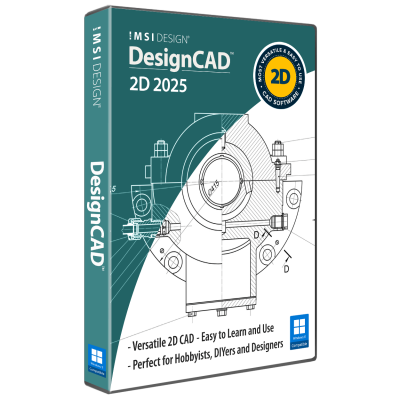
DesignCAD™ offers powerful yet easy-to-use 2D/3D CAD tools for beginners, hobbyists, and professionals. DesignCAD™ 3D Max combines intuitive 2D drafting with advanced 3D modeling, rendering, animation, and 3D printing support—ideal for both learning and pro projects. It supports AutoCAD® files for smooth compatibility. For 2D-focused users, DesignCAD™ 2D Express provides a simple interface with hundreds of drafting tools, perfect for technical drawings and layouts. DesignCAD™ helps bring your ideas to life with precision and ease.
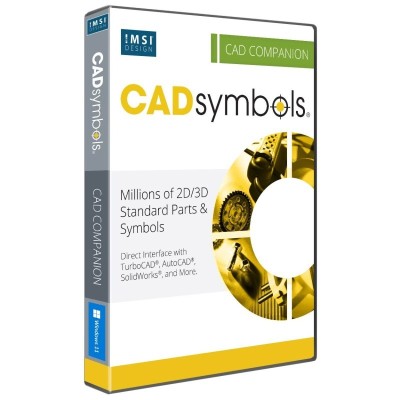
30+ Million Parts, Symbols and Models
CADsymbols® significantly boosts your productivity with over 30 million standard parts, symbols, and models for architectural, mechanical, electronic, and electrical drafting and design. This extensive library provides both 2D symbols and freely revolving 3D models, supporting both metric and imperial measurements, making it perfect for professionals who want to download complex symbols directly into their drawings instead of creating them from scratch.
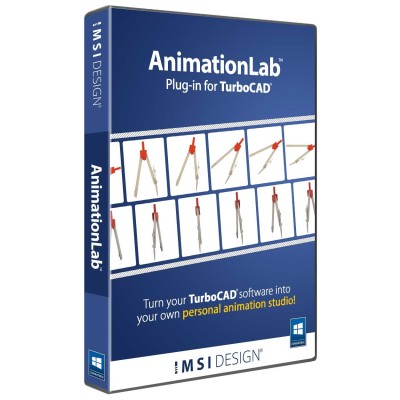
Animate your TurboCAD® designs.
AnimationLab Plug-in for TurboCAD® is easy-to-use software for creating professional-looking animations from your TurboCAD® designs. Use single click animation features to quickly enhance your work, or access high-end animation features for professional presentations.
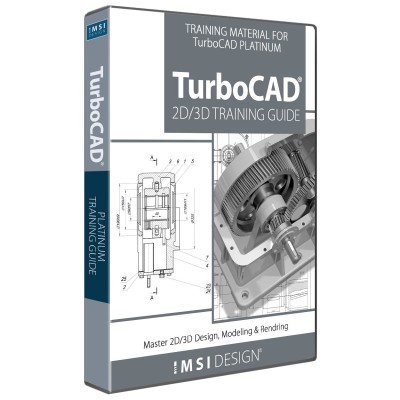
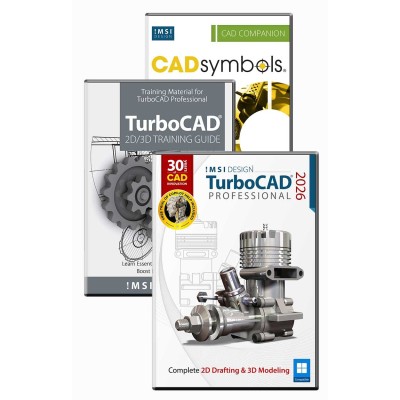
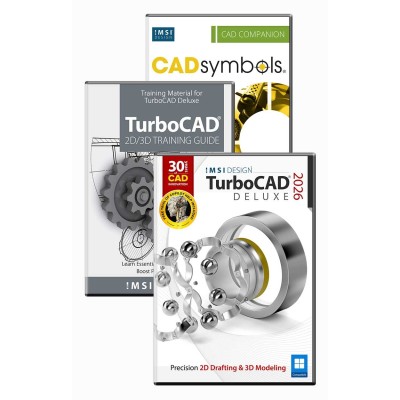
TurboCAD®’s training guides equip users with essential tools for mastering CAD workflows. Whether creating precise 2D drawings or detailed 3D models, these programs offer step-by-step tutorials, video animations, and hands-on exercises, simplifying complex design processes. Suitable for beginners and professionals, they cover architectural drafting, advanced 3D modeling, and photorealistic rendering while ensuring proficiency in TurboCAD® Deluxe, Professional, or Platinum.
Quickly Create Repeating Patterns
The Hatch Pattern Creator, already included in TurboCAD® Platinum and Pro, is now available as an add-on for TurboCAD® Deluxe and Designer users. Design and save repeating patterns. Enhance your designs with custom brush patterns.
Perpetual licenses include 12 months of free technical support. For products that are less than 5 years old, we offer Maintenance & Support Renewals. Our Maintenance & Support plans ensure you have access to the latest patches and dedicated technical support. If you need ongoing free technical support, you may want to consider a Subscription license.
Yes, TurboCAD offers photorealistic rendering with customizable lighting, materials, and shadows. The TurboLux™ renderer provides high-quality visualization for 3D models.
Disclaimer: Feature availability varies by version. Always refer to the Product Line Comparison Chart to confirm specific features included in your edition of TurboCAD® for Windows.
TurboCAD Designer provides a similar 2D drafting experience with familiar tools, but the Deluxe, Professional, and Platinum variants also includes powerful 3D modeling capabilities at a more affordable price. It supports DWG/DXF files, making it easy for AutoCAD users to transition.
Disclaimer: Feature availability varies by version. Always refer to the Product Line Comparison Chart to confirm specific features included in your edition of TurboCAD® for Windows
TurboCAD for Windows is compatible with Windows operating systems. Check the system requirements on the official website to ensure compatibility with your device. We also offer a Mac version. Please visit the official website for more information.
Yes, TurboCAD for Windows includes architectural tools, such as parametric walls, doors, windows, roofs, and slabs. It also supports BIM (IFC import) for basic compatibility with BIM workflows.
Disclaimer: Feature availability varies by version. Always refer to the Product Line Comparison Chart to confirm specific features included in your edition of TurboCAD for Windows.
TurboCAD for Windows supports DWG, DXF, STL, 3D PDF, SketchUp, STEP, IGES, and more. The number of supported file formats depends on the edition.
Note: Some import/export features are only available in higher-tier versions. For a detailed overview of feature distribution, please consult the File Filter Comparison Chart available on the product page.
Yes, TurboCAD for Windows includes architectural tools, such as parametric walls, doors, windows, roofs, and slabs. It also supports BIM (IFC import) for basic compatibility with BIM workflows.
Disclaimer: Feature availability varies by version. Always refer to the Product Line Comparison Chart to confirm specific features included in your edition of TurboCAD for Windows.